Time log for other classmates’ sites
- Chase B: 2/8/2026, 4:40pm – 4:47pm
- Ankit B: 2/8/2026, 4:47pm – 5:00pm
- Shreya S: 2/8/2026, 5:00pm – 5:08pm
- Mafil C: 2/8/2026, 5:08pm – 5:16pm
Part I: Describe your menu structure and what you have implemented in your CMS
I implemented a structured and hierarchical navigation menu within my CMS to organize both personal content and course-related assignments in a clear and intuitive way. The main menu begins with Home, followed by About Aika, which serves as a parent menu item containing subpages for My Career and My Hobbies. This section introduces who I am and provides context about my professional background and personal interests, helping visitors understand the purpose and owner of the site.
To support coursework organization, I created a dedicated HWs (Homework) parent menu that groups assignments by week. Under HW3, I included posts explaining What is a Virtual Host Service?, What is a Container (Docker)?, and What is a CMS?, all of which are directly linked to individual blog posts. This structure allows assignments to be easily accessed while keeping the navigation uncluttered. For HW4, I added sub-items such as Hometown and Traveltown, which showcase content tied to personal history and travel experiences. I also prepared a placeholder for HW5 to I added sub-items such as HW5 Summary, My Career, and My Hobbies to showcase week 5’s homework items. Overall, this menu structure demonstrates effective use of hierarchical navigation in WordPress, making the site easy to navigate while clearly separating personal content from academic work.
Part II: Discuss what new contents you have added. Provide all the links of new contents.
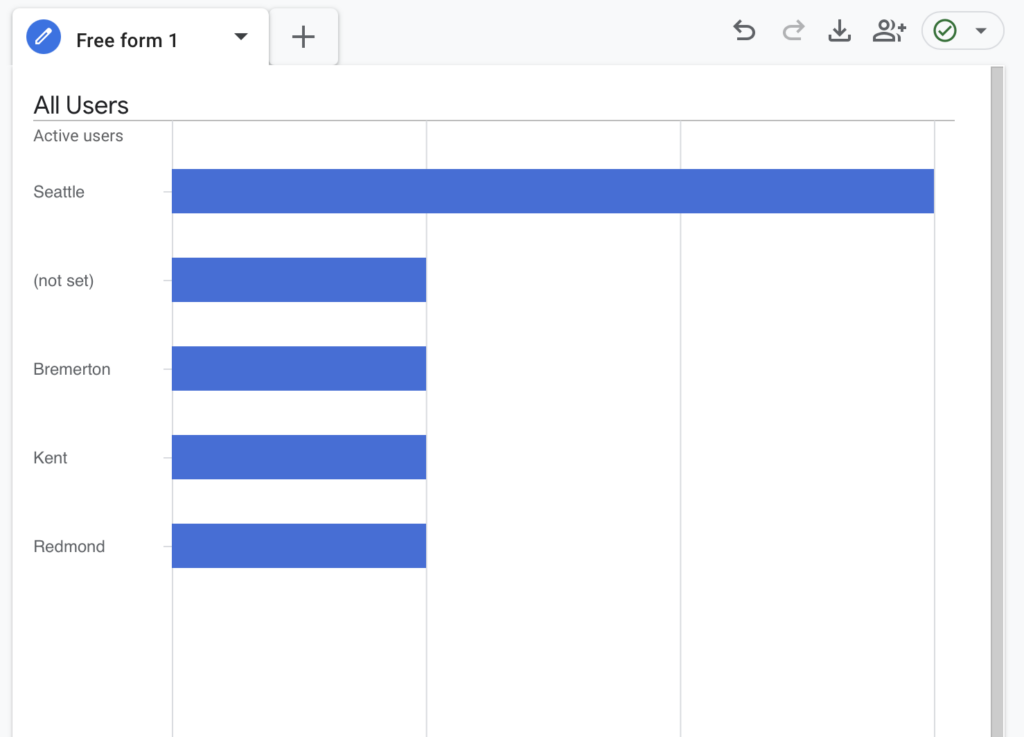
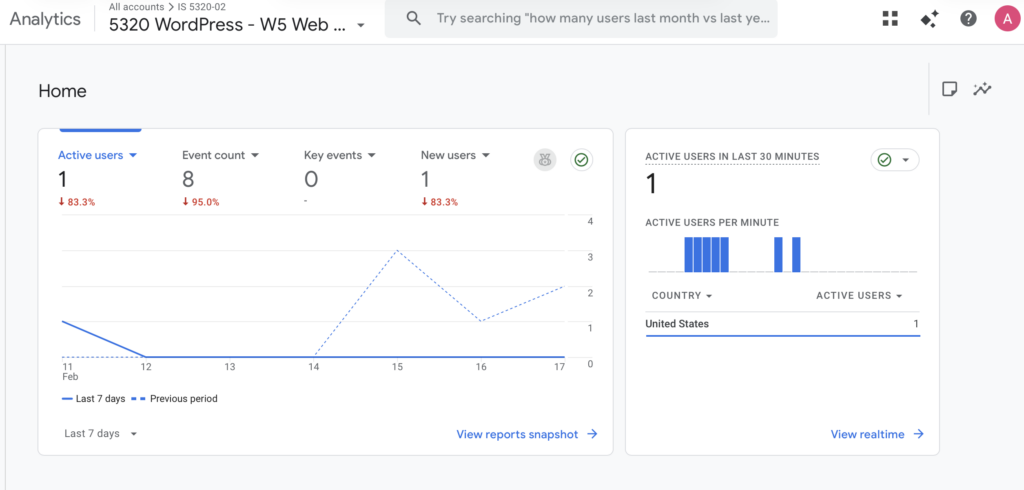
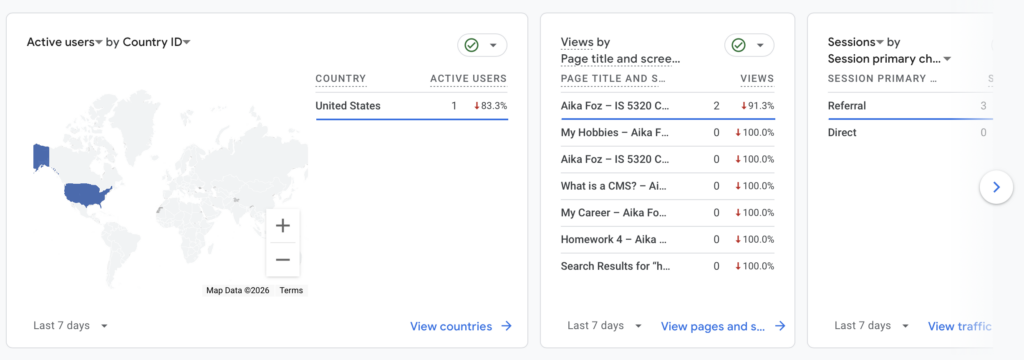
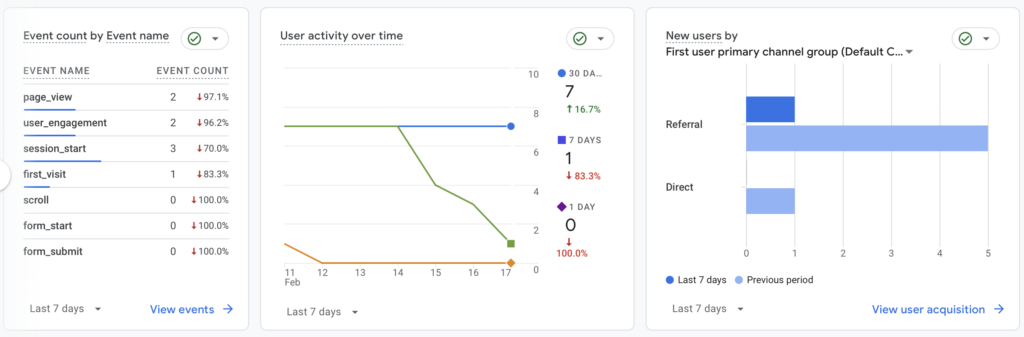
As part of my work in IS 5320-02 Web Analytics, I added and configured new analytics-focused content and tracking elements to my website to support data collection, measurement, and analysis.
1. Google Analytics 4 (GA4) Tag Implementation
I implemented the Google Analytics 4 tracking tag across my website to enable consistent measurement of user activity, page views, and engagement. The GA4 tag was added to the site header so that analytics data is captured on all pages for analysis throughout the course.
Some of the Links:
2. Blog Post Tagging for Content Classification and Analysis
I added and applied blog post tags to categorize content by topic and theme. These tags function as a content taxonomy that supports analytics analysis by allowing traffic and engagement to be evaluated by content category rather than by individual pages alone.
This tagging structure enables future analysis in Google Analytics of:
- Engagement by content topic
- Page groupings based on tags
- User interest patterns across related blog content
Link:
HWs Tab to organize all weekly homework in one area http://18.205.38.193/#
Blog Home http://18.205.38.193/
My Career http://18.205.38.193/2026/02/08/my-career/
My Hobbies http://18.205.38.193/2026/02/08/my-hobbies/
Part III: Discuss what you have developed/achieved in managing categories/tags
In managing categories and tags on my website, I applied what I learned about content classification and SEO best practices from WPBeginner (Category; Categories vs. Tags). Specifically, I developed a clearer taxonomy structure so that content is not only organized for usability but also more meaningful for analytics measurement.
First, I created and managed site categories to group related content under broad themes. Categories act like the primary directory of content. They tell both users and analytics systems what the main topics are on the site (WPBeginner, n.d.-a). By consistently categorizing posts (e.g., blog and homework, services overview), I was able to prepare my site so that future reports can compare performance across category groups rather than only at the individual page level.
Second, I implemented blog post tags as a more granular labeling system. According to WPBeginner (n.d.-b), tags are distinct from categories and help describe specific details or features of a post that cross category boundaries. I used tags to identify specific topics, keywords, and themes within posts so that I can analyze traffic at a more detailed level. For example, I’m hoping to use the data I pull from Google Analytics to examine user engagement on posts with similar tags even if they belong to different categories from this upcoming week of having it installed.
Managing categories and tags helped me achieve:
- Improved content organization, which makes analytics reporting more interpretable;
- Better content groupings, enabling analysis of behavior by topic clusters;
- Standardized tag usage, which reduces redundancy and improves the quality of classification data in analytics.
By intentionally managing taxonomy elements like categories and tags, I strengthened my ability to segment traffic and engagement meaningfully in tools such as Google Analytics 4, supporting deeper insights into user behavior and content performance.
Part IV: Describe how you use category search for visitors (i.e., side search bar) and tag cloud plugin
To support visitor navigation and content discovery, I implemented both a category search feature (via the side search bar) and a tag cloud plugin on my website. These tools were designed to improve usability while also enabling more meaningful analysis of user behavior.
Category Search for Visitors
The category search function in the side search bar allows visitors to filter and browse content by broad topic areas. This helps users quickly locate content that aligns with their interests without needing to scroll through the entire blog.
From an analytics perspective, category-based navigation supports:
- Analysis of which content categories attract the most user interaction
- Understanding how visitors move between category pages and individual posts
- Identifying high-interest content areas based on category-level engagement
This structure improves the clarity of user intent and supports better interpretation of navigation paths in Google Analytics.
Tag Cloud Plugin
The tag cloud plugin provides visitors with a visual overview of frequently used tags, allowing them to explore content based on more specific topics or keywords. Tags with higher frequency appear more prominently, helping guide users toward popular or recurring themes.
This feature supports analytics by:
- Encouraging deeper exploration across related posts
- Revealing which topics generate the most interest
- Allowing analysis of engagement patterns tied to specific tags
By offering both category search and tag-based navigation, visitors can choose between broad topic exploration and more detailed content filtering.
Summary
Together, the category search bar and tag cloud plugin enhance the user experience by improving content accessibility and navigation. From a web analytics perspective, these tools support clearer analysis of user behavior, content preferences, and engagement patterns, aligning with the goals of IS5320-02 Web Analytics.
References
WPBeginner. (n.d.-a). Category. WPBeginner Glossary. https://www.wpbeginner.com/glossary/category/
WPBeginner. (n.d.-b). Categories vs. tags SEO best practices – Which one is better? WPBeginner. https://www.wpbeginner.com/beginners-guide/categories-vs-tags-seo-best-practices-which-one-is-better/